Merging Duplicate Contacts
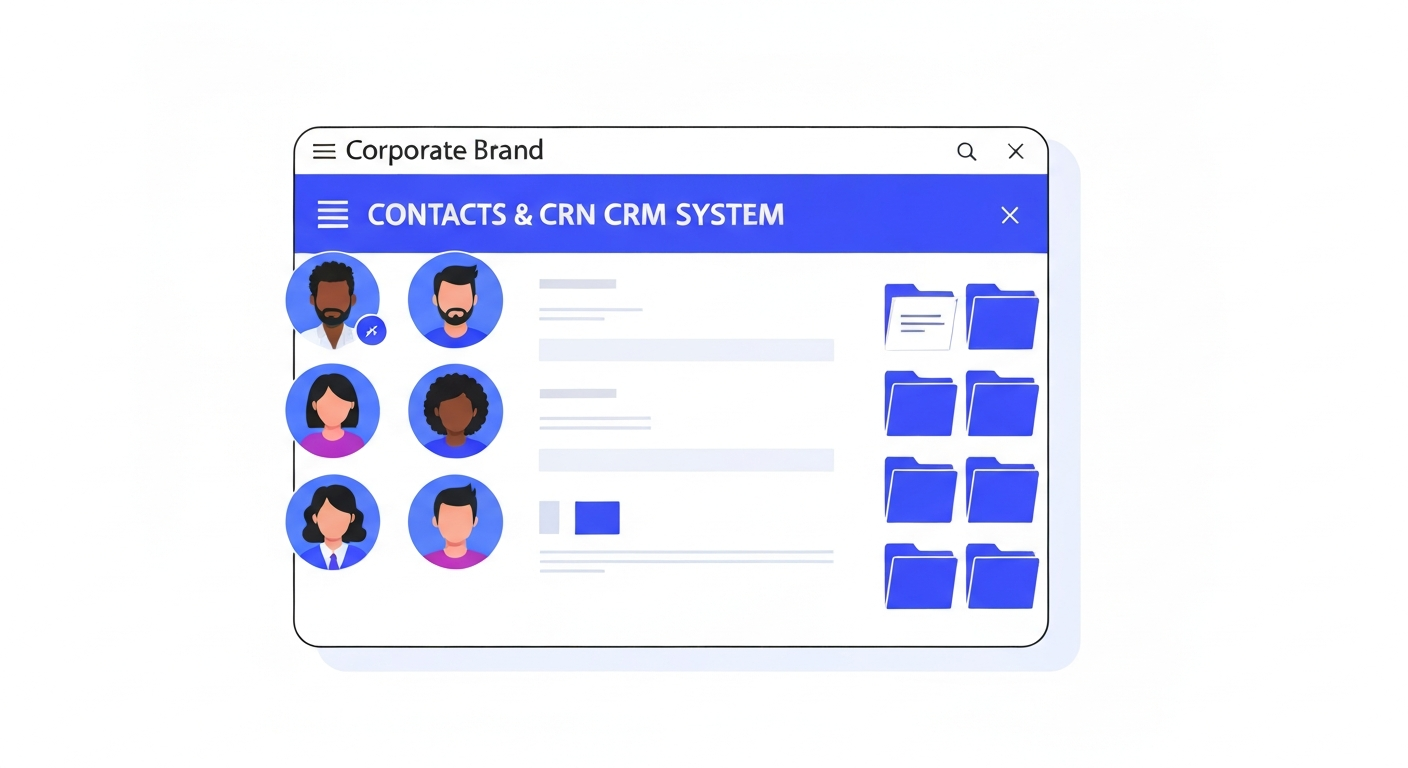
Duplicate contacts can happen when a user fills out a form with a different email address. Merging them ensures you have a complete history in one place.
Step 1: Select Duplicates
In the Contacts list, check the boxes next to the two or more duplicate records you want to combine.
Step 2: Initiate Merge
Click the Merge Contacts icon in the bulk actions menu at the top of the screen.
Step 3: Choose Master Record
Select which contact should be the "Master". The system will keep the Master's core details but pull in any missing data, notes, and conversation history from the secondary records.
Was this article helpful?
New to CastaLink? Discover how our all-in-one platform can help you capture and close more leads.
Learn More