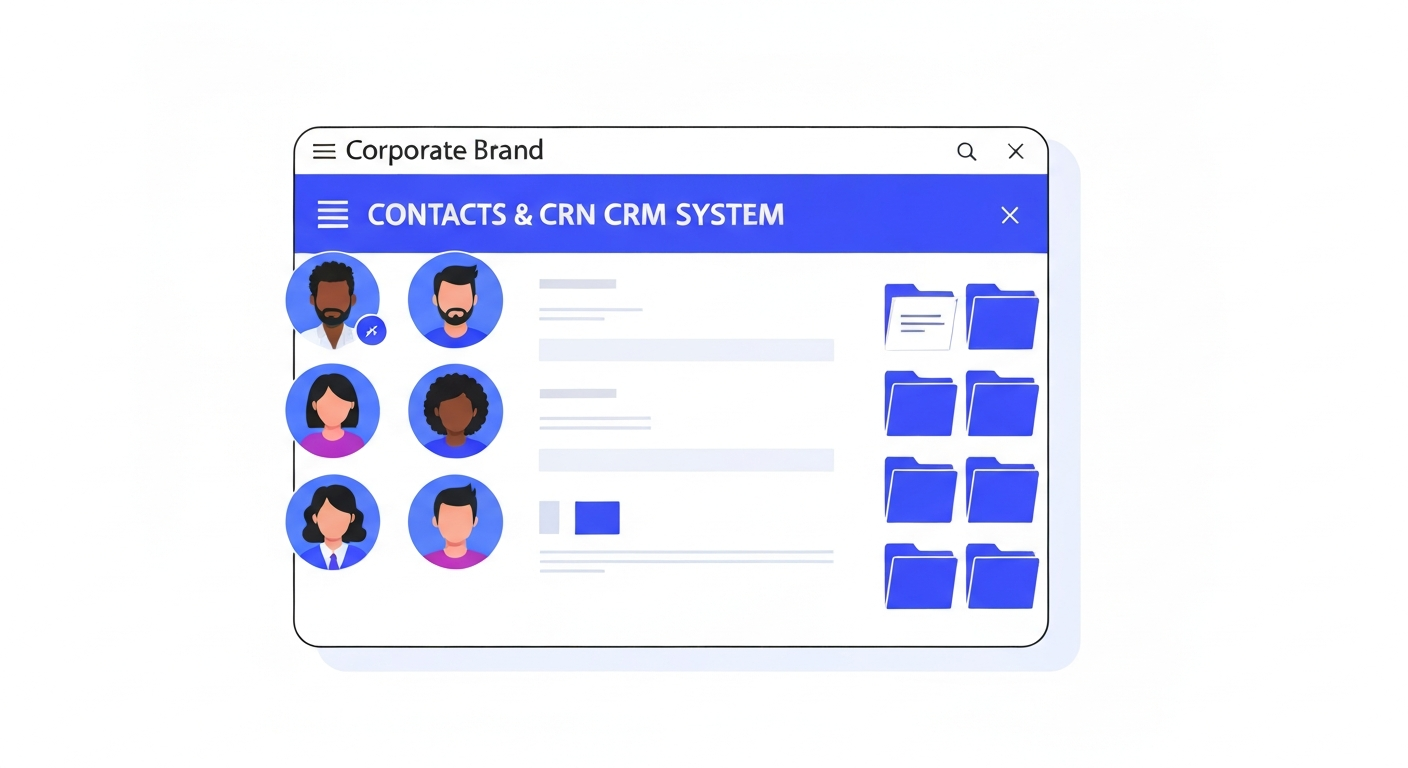
Exporting Contacts to CSV
You own your data. Exporting your contacts is simple and allows you to run external reports or keep hard backups.
Step 1: Filter Your List
In the Contacts tab, use filters or Smart Lists to view only the contacts you want to export. To export everyone, make sure you are viewing "All Contacts".
Step 2: Select and Export
Check the box at the top left of the table to select all visible contacts. Click the Export Contacts icon in the top bulk action menu.
Step 3: Download
The system will generate a CSV file containing all standard and custom fields for the selected contacts and automatically download it to your computer.
Was this article helpful?
New to CastaLink? Discover how our all-in-one platform can help you capture and close more leads.
Learn More