Creating and Using Smart Lists
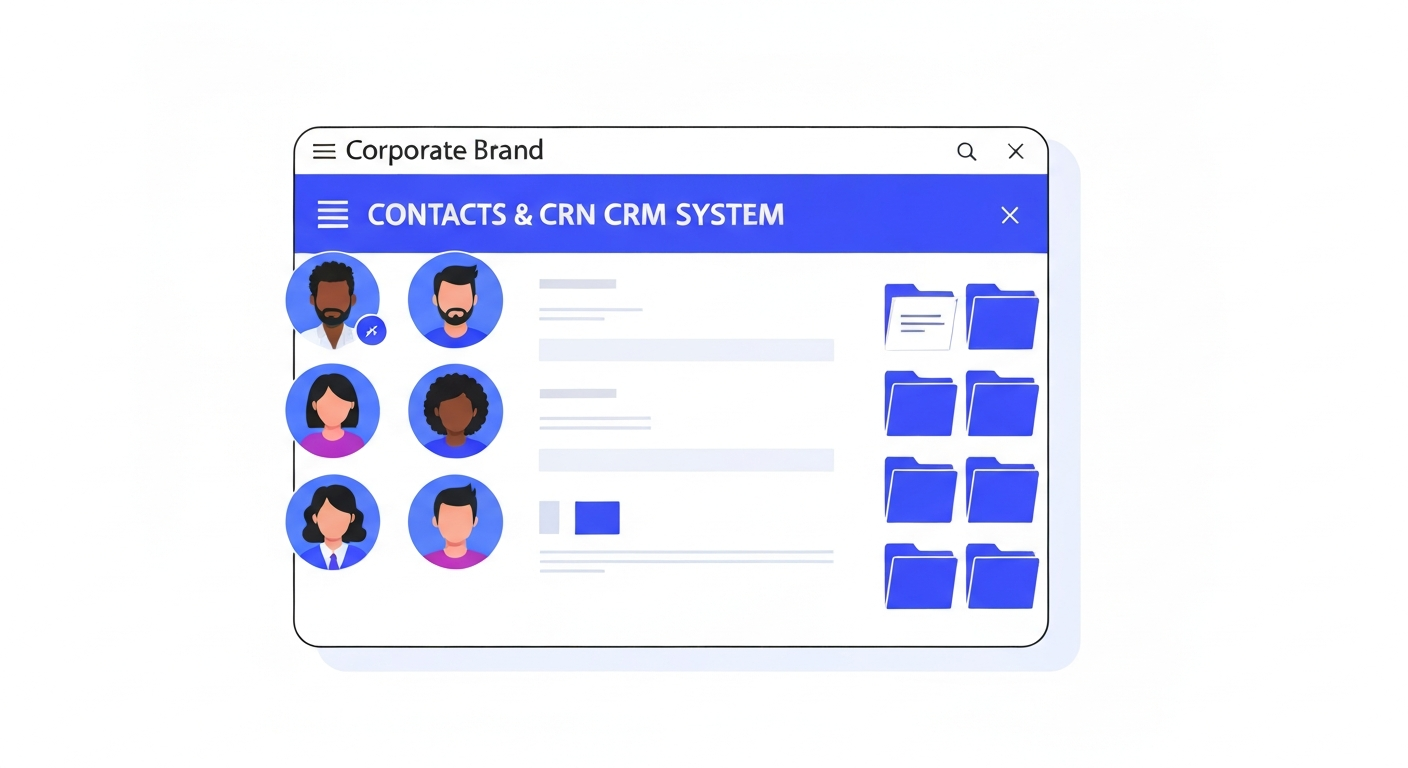
Smart Lists are saved segments of your database. Instead of rebuilding complex filters every time, you can save them as a tab at the top of your Contacts view.
Step 1: Apply Filters
In the Contacts tab, click More Filters. Add your criteria, such as "Tag is VIP" and "Last Activity is less than 30 days ago".
Step 2: Save as Smart List
Once your list is filtered, click the Save as Smart List button (usually a plus icon next to the tabs). Give it a clear name like "Active VIPs".
Step 3: Accessing Your Lists
Your new Smart List will appear as a tab next to "All Contacts". Clicking it will instantly load the dynamically updated segment.
Was this article helpful?
New to CastaLink? Discover how our all-in-one platform can help you capture and close more leads.
Learn More