Adding Team Members and Users
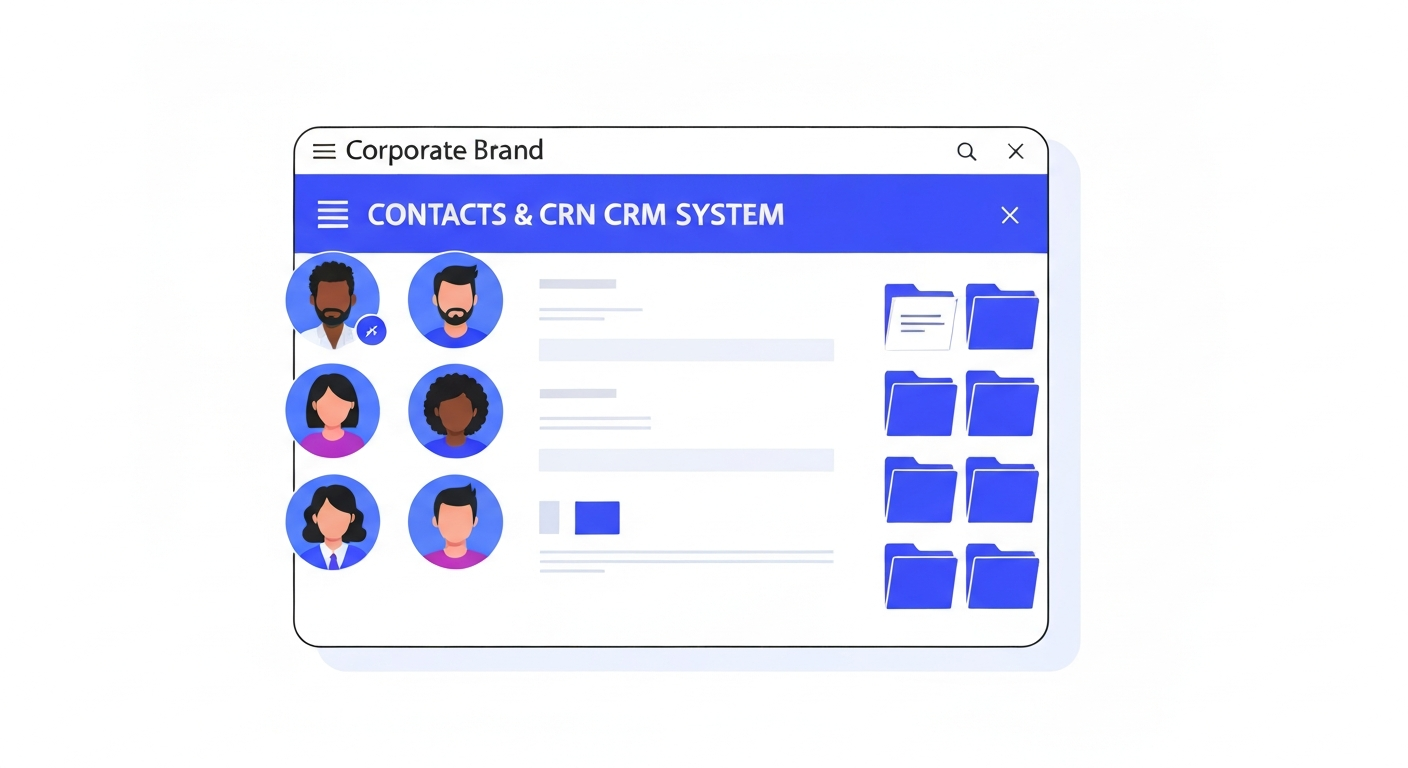
CastaLink allows you to add unlimited team members to your account. You can restrict what they can see and do to keep your data secure.
Step 1: Navigate to My Staff
Go to Settings > My Staff. Here you will see a list of all current users.
Step 2: Add an Employee
Click the Add Employee button. Fill in their first name, last name, email address, and phone number. You can also upload a profile picture for them.
Step 3: Set Permissions
Expand the User Permissions section. Toggle off any features you don't want this user to access. For example, you might want a sales rep to access Conversations and Contacts, but not Settings or Websites.
Step 4: Assign Roles
Under User Roles, select whether they are a User or an Admin. Admins have full access to billing and account-level settings.
Step 5: Save and Invite
Click Save. The system will automatically send them an email invitation with instructions to set their password and log in.